All Properties
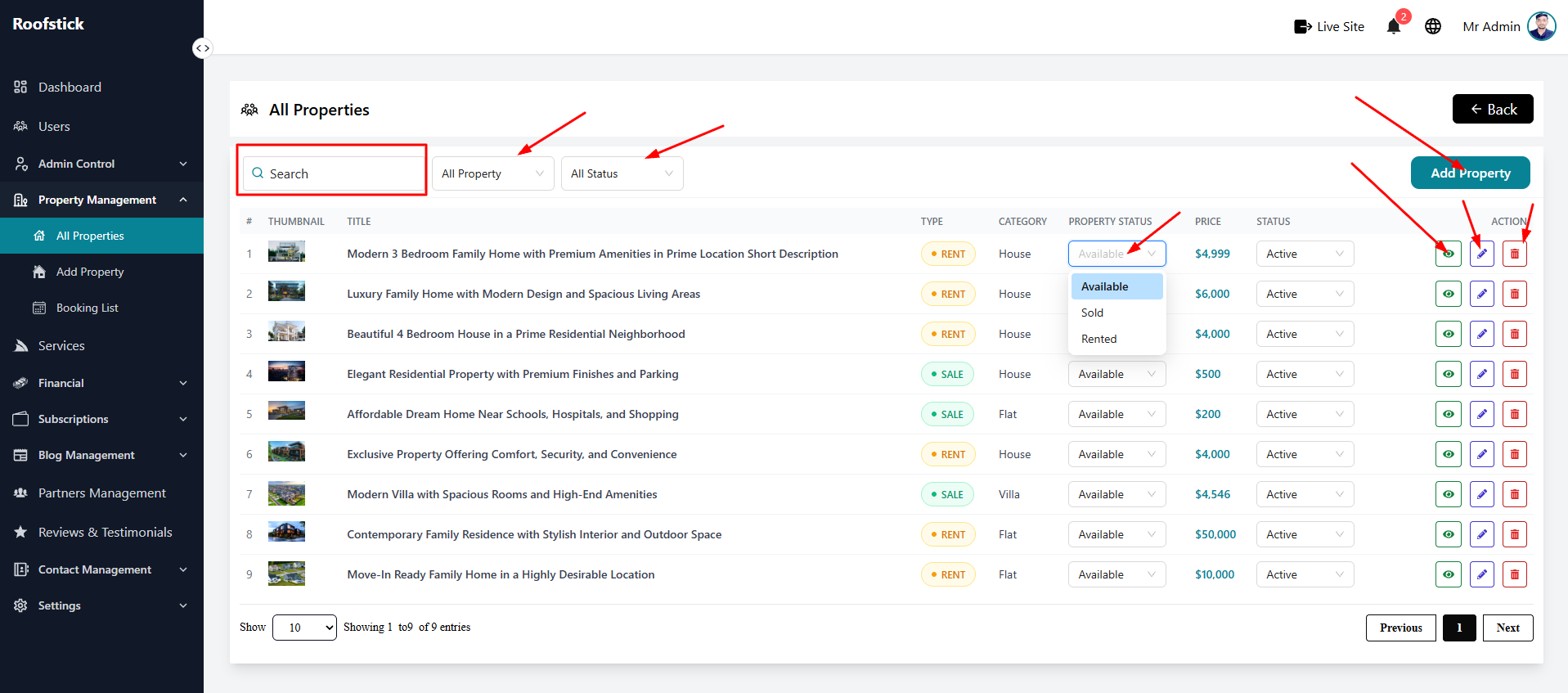
The All Properties page provides the admin with a centralized location to manage every real estate listing on the platform. From this page, you can view, add, edit, and check the details of all properties.
1. View All Properties
The main table displays a complete list of all uploaded properties. You can quickly see the property name, location, price, and current status (e.g., Pending, Approved, Rejected).
2. Add New Property
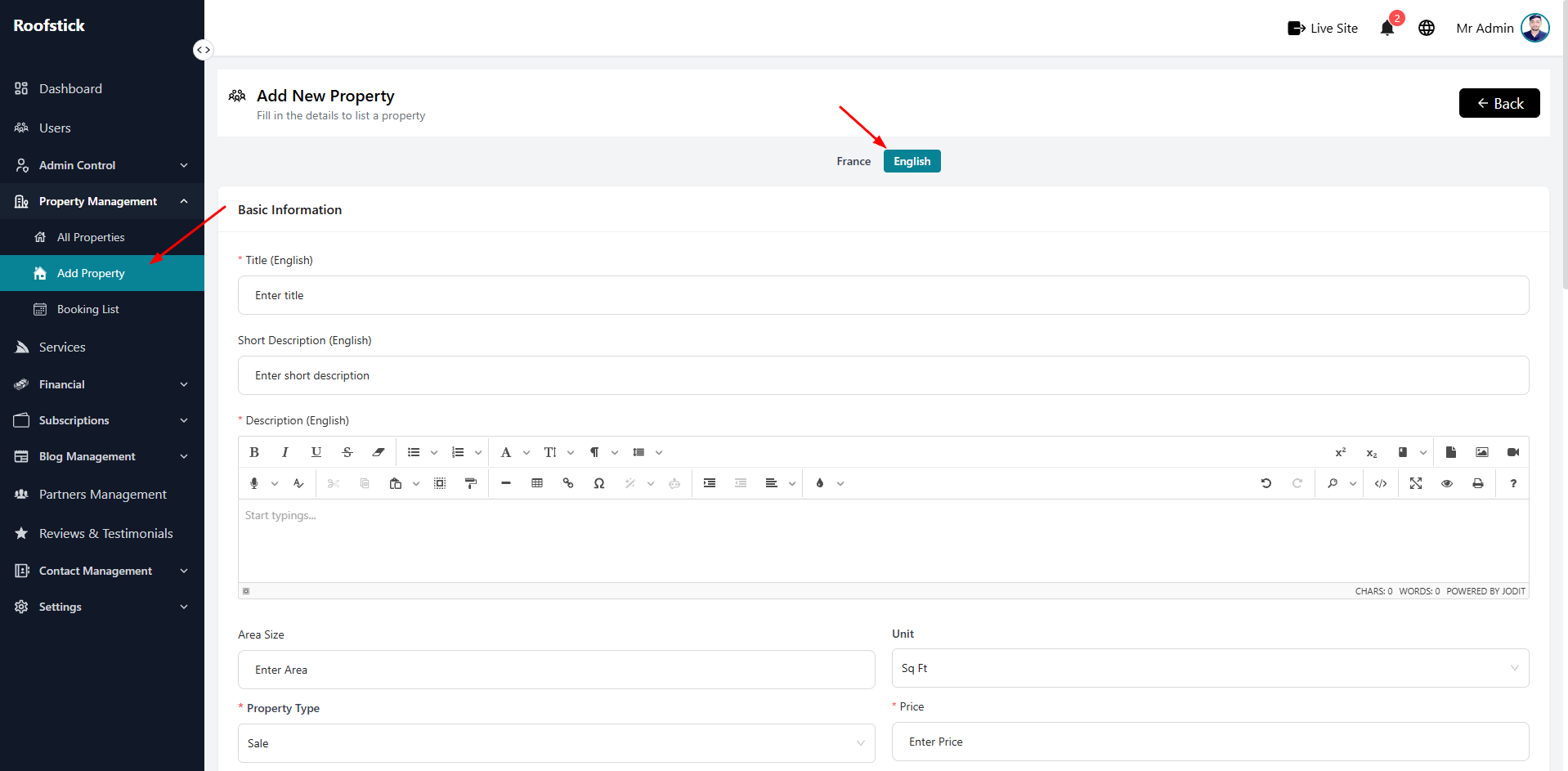
To manually add a new real estate listing to the platform, click the Add Property button. You will need to fill out all the necessary details like title, description, price, features, and upload property images.
3. Edit Property
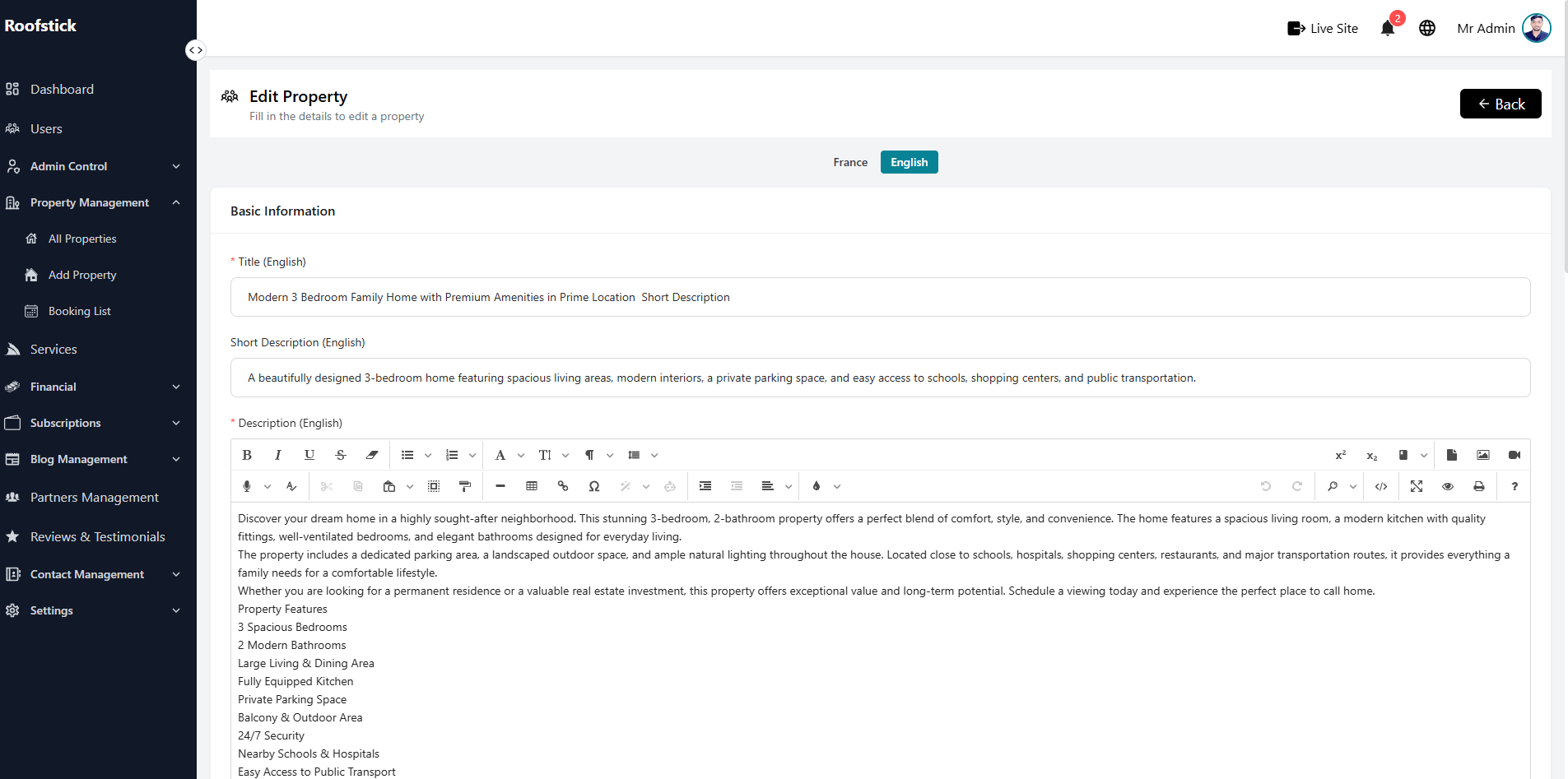
If an admin created a property, they can click the Edit button to update its information.
[!WARNING] Edit Restrictions: The admin can only edit properties that they have created themselves. If a property was added by an Agent, the admin cannot edit its details (they can only view or delete it).
4. Property Details
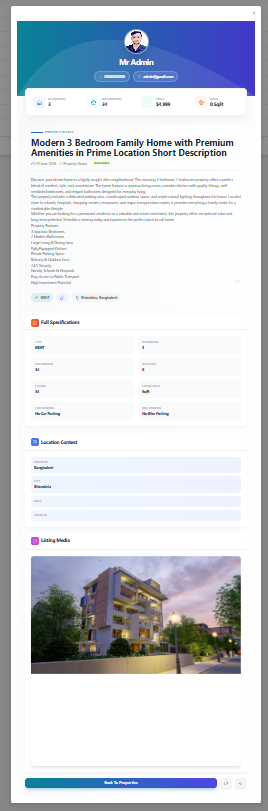
To view the full, comprehensive information about a specific listing, click the View Details button (eye icon). This will show you exactly how the property appears, including its images, amenities, and location map.
5. Delete Property
If a property violates platform rules or needs to be removed from the platform, the admin can permanently remove it by clicking the Delete button (trash icon).
[!NOTE] The admin has full authority to delete any property, regardless of whether it was added by the admin themselves or by an agent.