Services
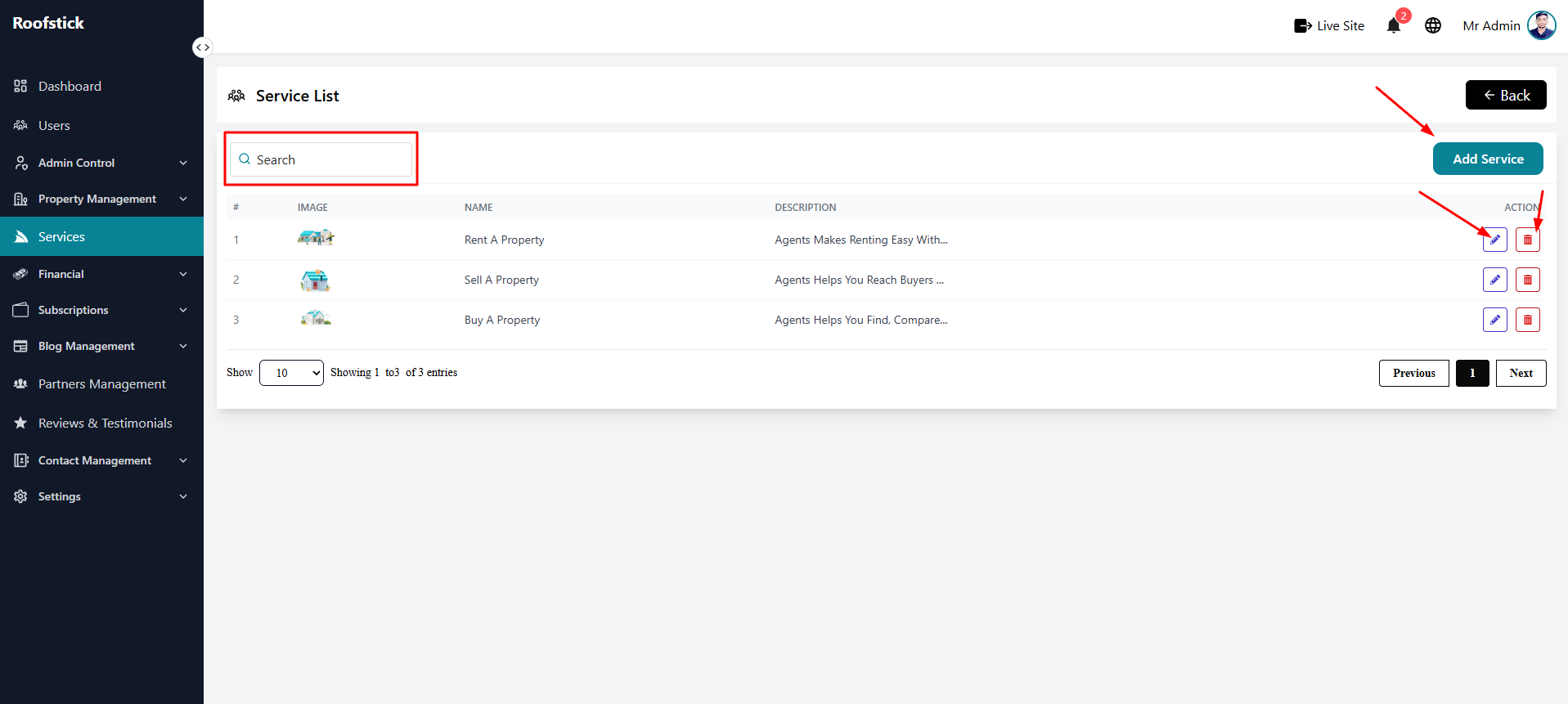
The Services page allows the admin to manage and list all the core services offered by the platform. These services are often highlighted on the front page to attract users. From this section, the admin can view, add, edit, and delete services.
1. View All Services
The main table displays a complete list of all currently active services. You can easily review the title, description, and icon associated with each service, as well as manage them through the action column.
2. Add New Service
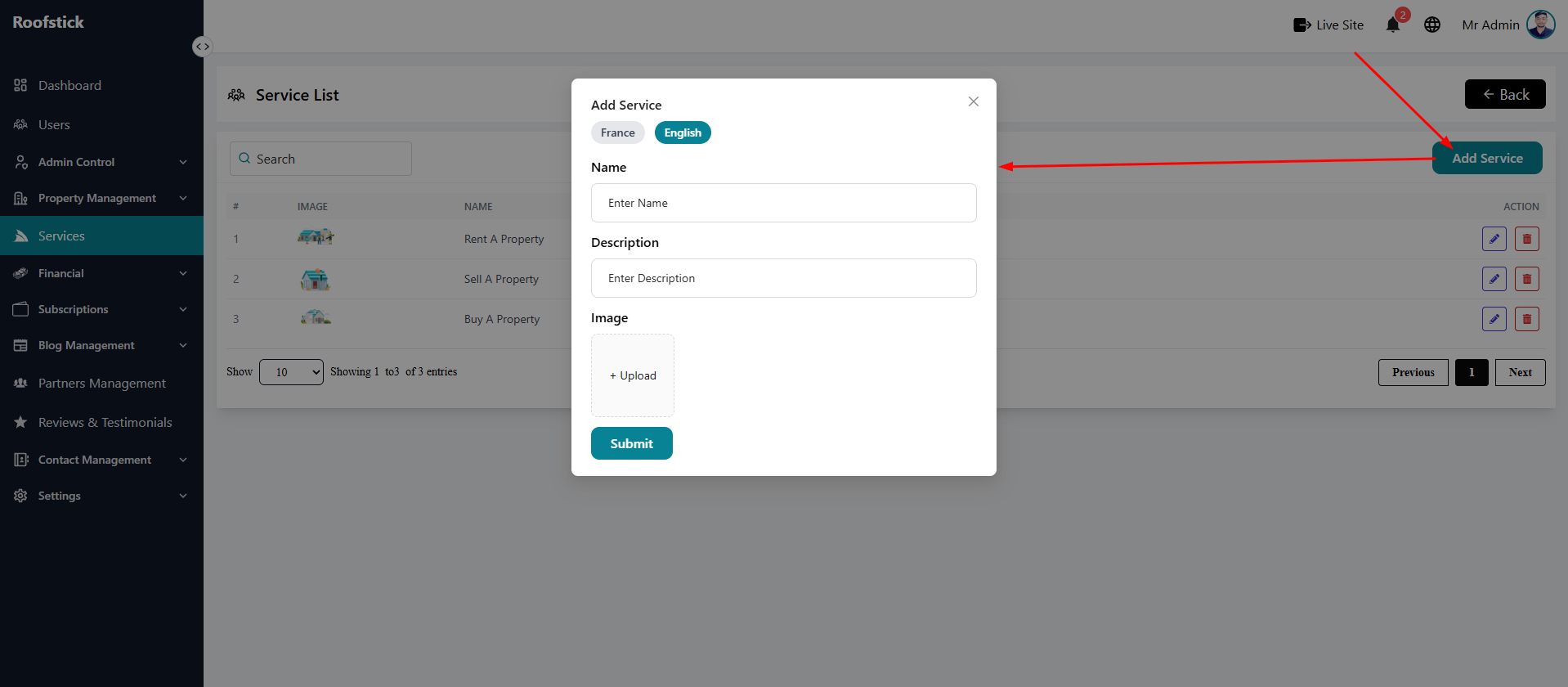
To introduce a new feature or service to your users, click the Add Service button. You will be prompted to provide the service name, a short description, and upload a relevant icon or image.
3. Edit Service
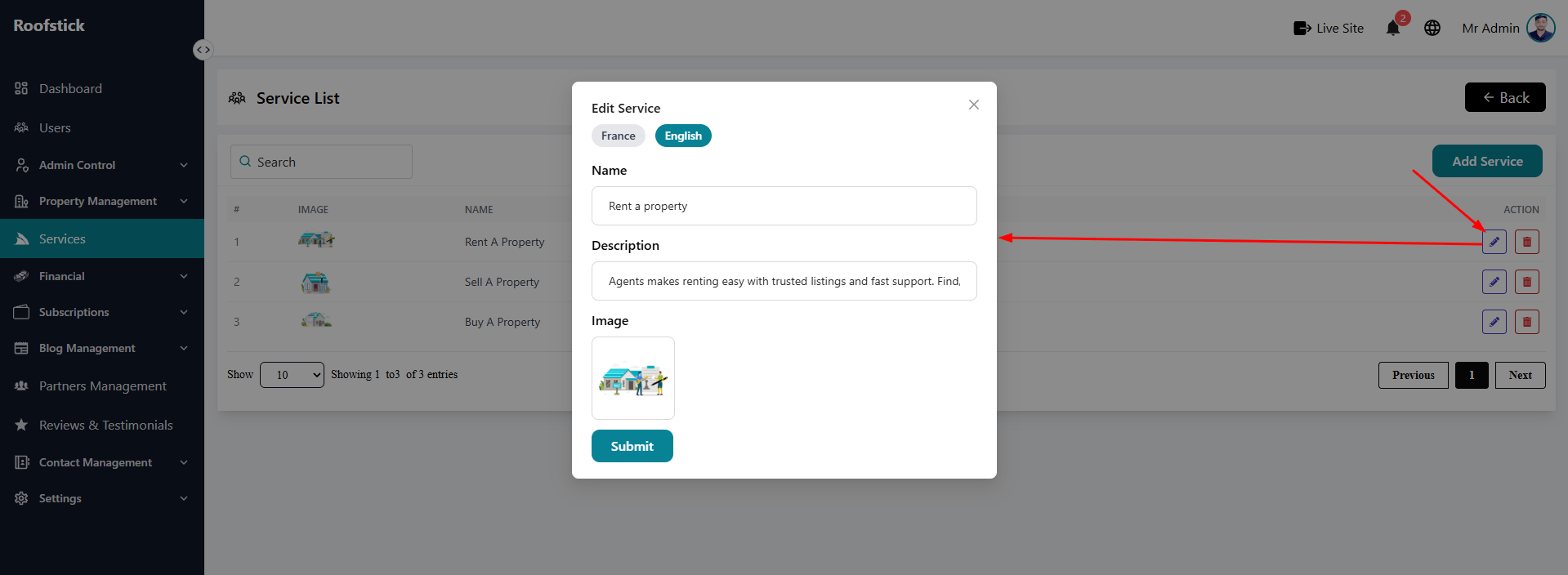
If you need to update the details, fix a typo, or change the icon of an existing service, click the Edit button in the action column. Make your changes and save them to instantly update the live site.
4. Delete Service
If a service is no longer offered by the platform, the admin can permanently remove it by clicking the Delete button (trash icon). This will immediately remove the service from the user-facing pages.