Languages
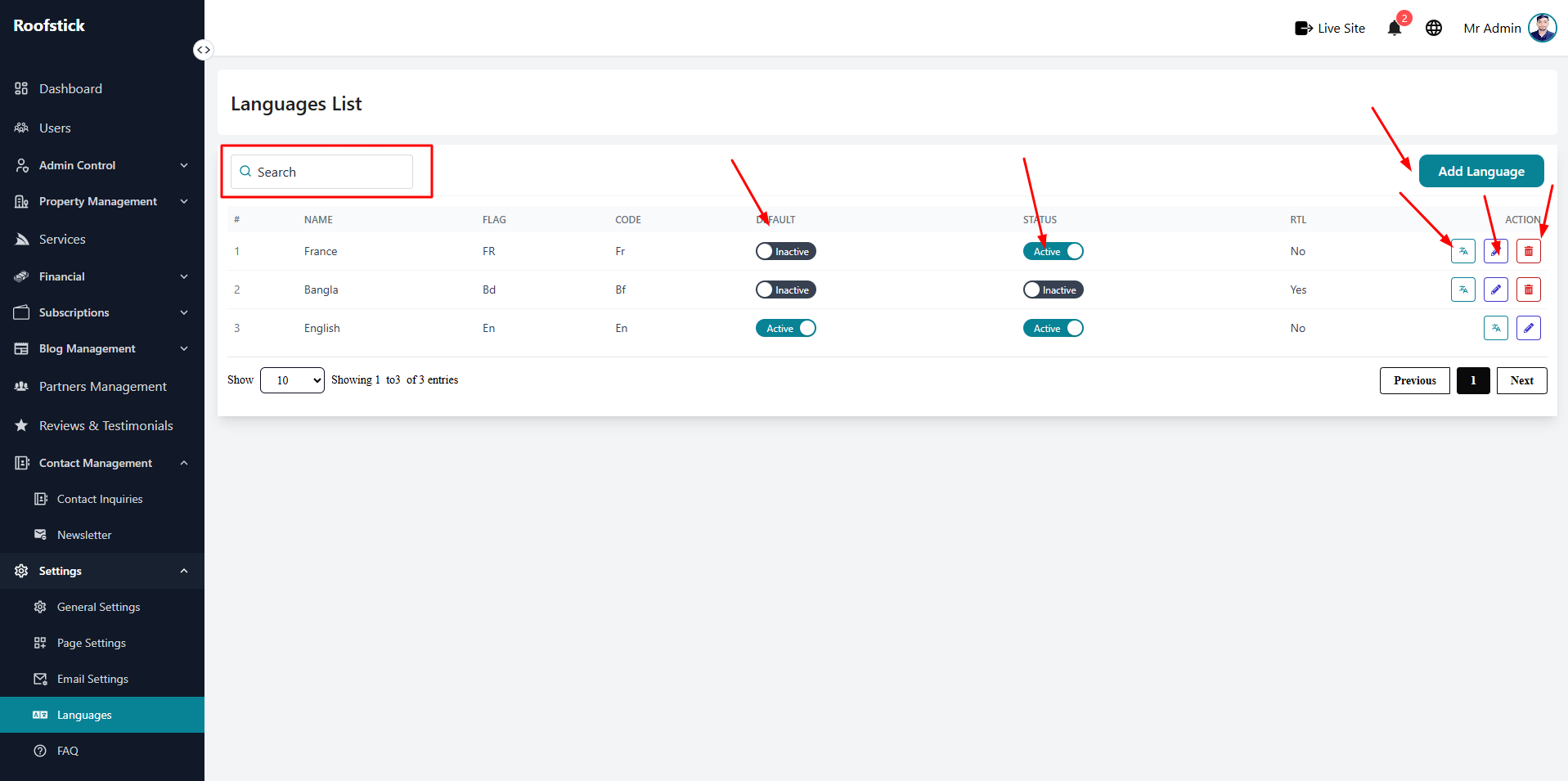
The Languages page allows the admin to manage and configure all the languages available on the platform. From this section, the admin can view the list of supported languages, add new ones, edit existing configurations, and translate platform text.
1. View All Languages
The main table displays a complete list of all currently active languages on your platform. You can easily review the language names, their short codes, and their current status, as well as manage them through the action column.
2. Add New Language
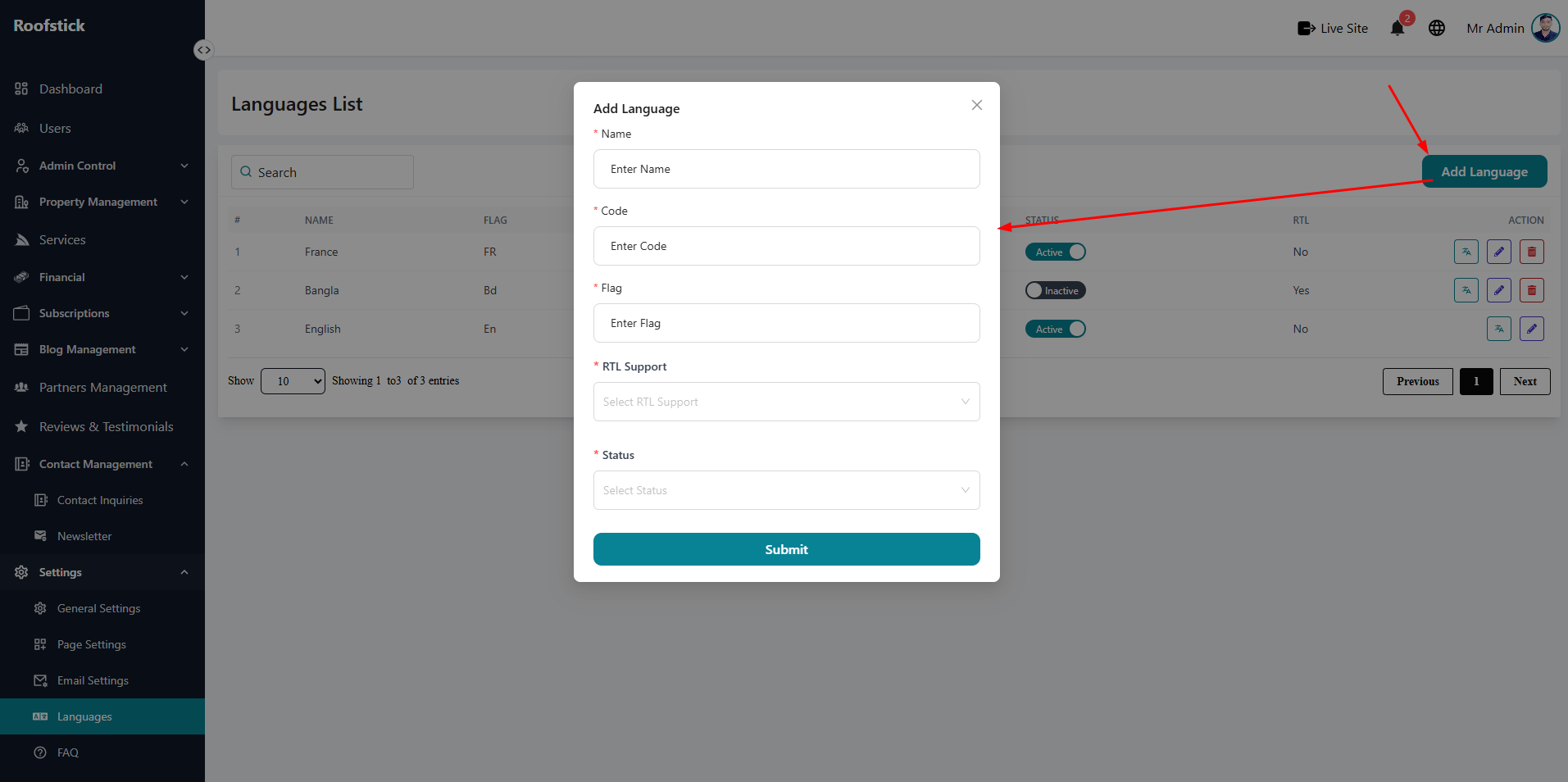
To expand your platform's reach to a new audience, click the Add Language button. You will be prompted to provide the language name, its short code, and select its text direction (e.g., LTR or RTL).
3. Edit Language
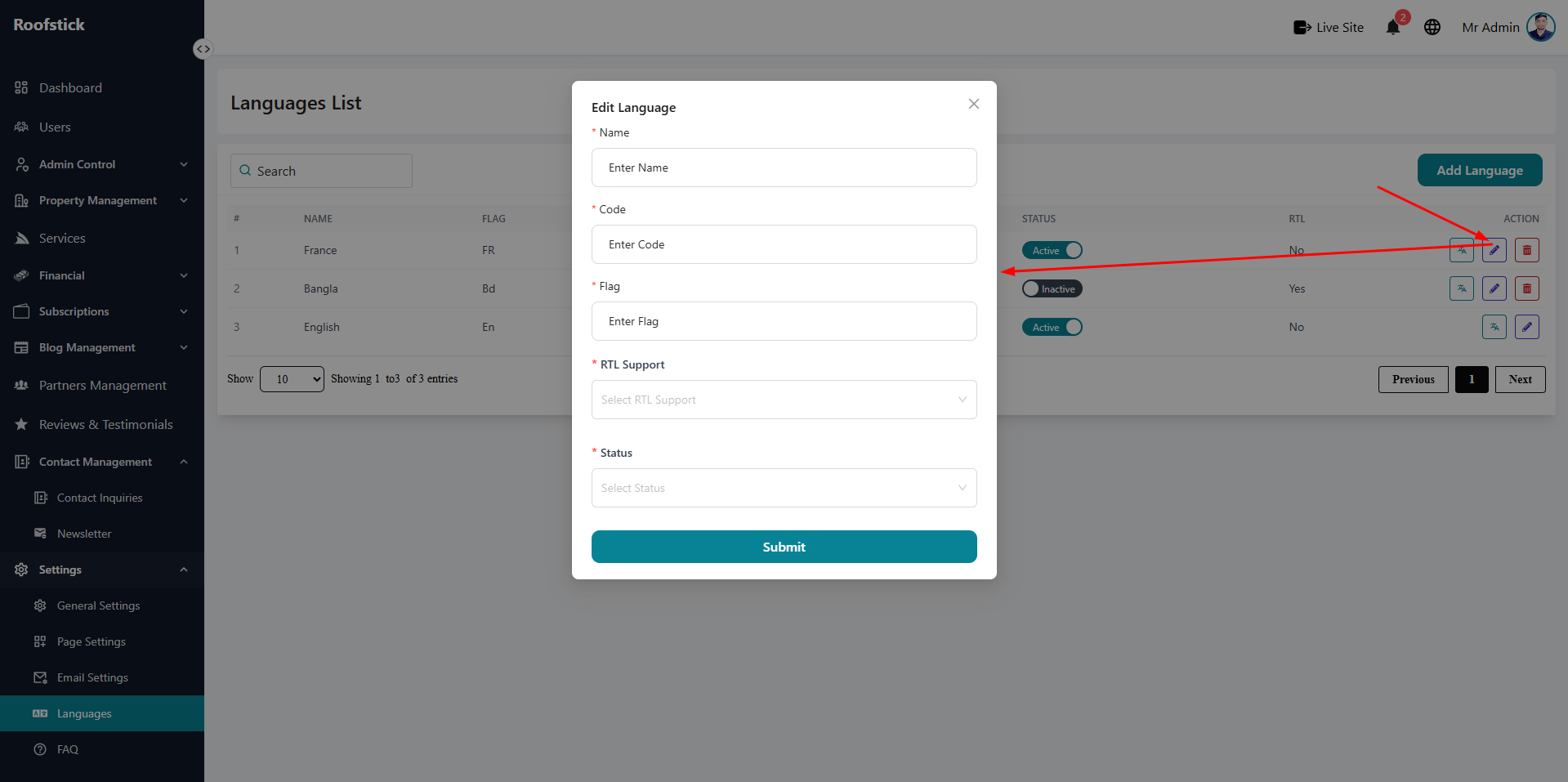
If you need to update the details of a language or change its active status, click the Edit button in the action column. Make your changes and save them to instantly update the platform's language settings.
4. Translate Language
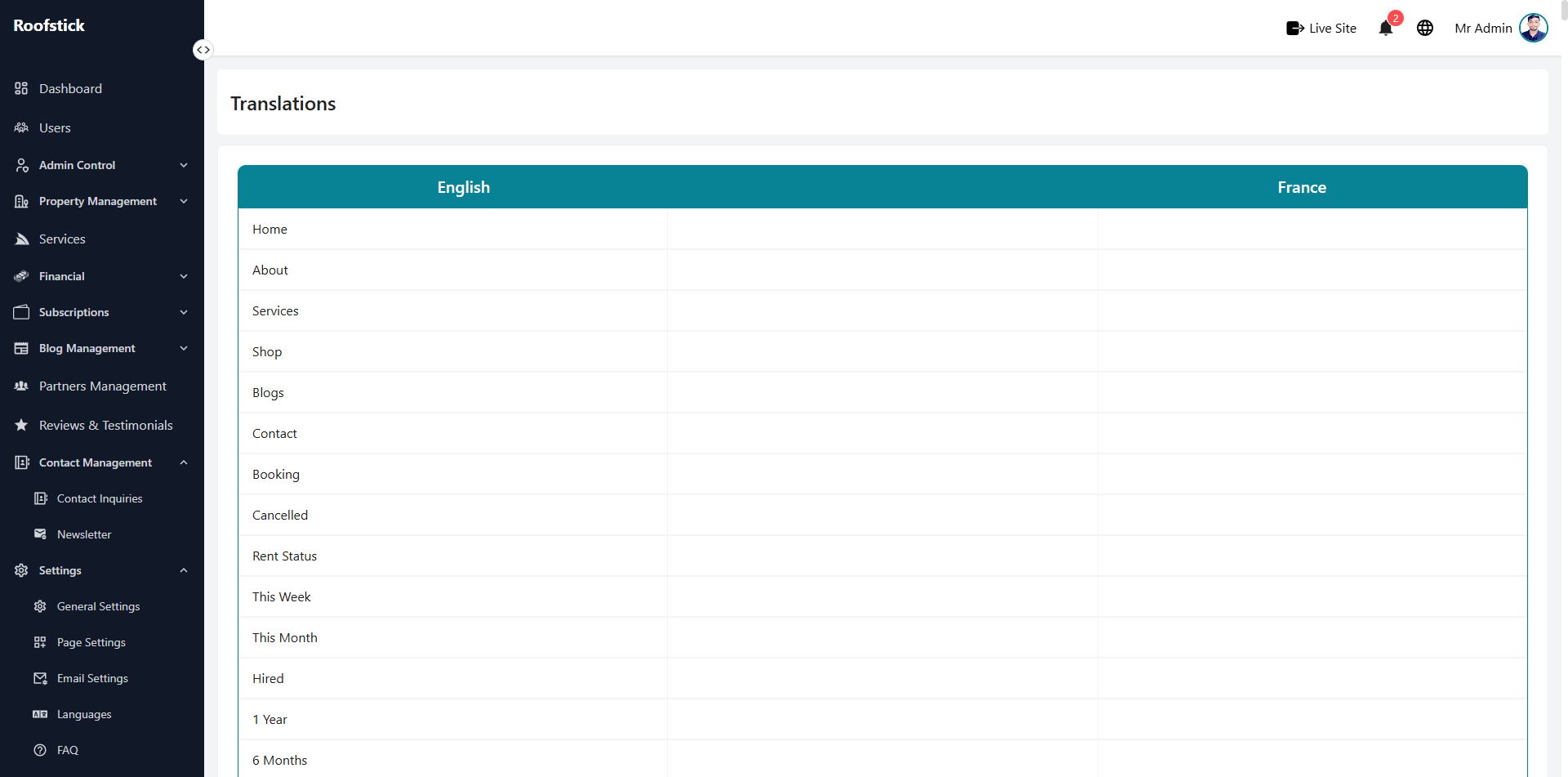
To ensure all parts of your platform are fully localized, click the Translate button next to a language. This opens a dedicated interface where you can translate all the system strings and frontend text for that specific language.
5. Delete Language
If a language is no longer supported or was added by mistake, the admin can permanently remove it by clicking the Delete button (trash icon). This will immediately remove the language from the system.